
3.5 KiB
Executable File
Define Spread Costs/Revenues Board
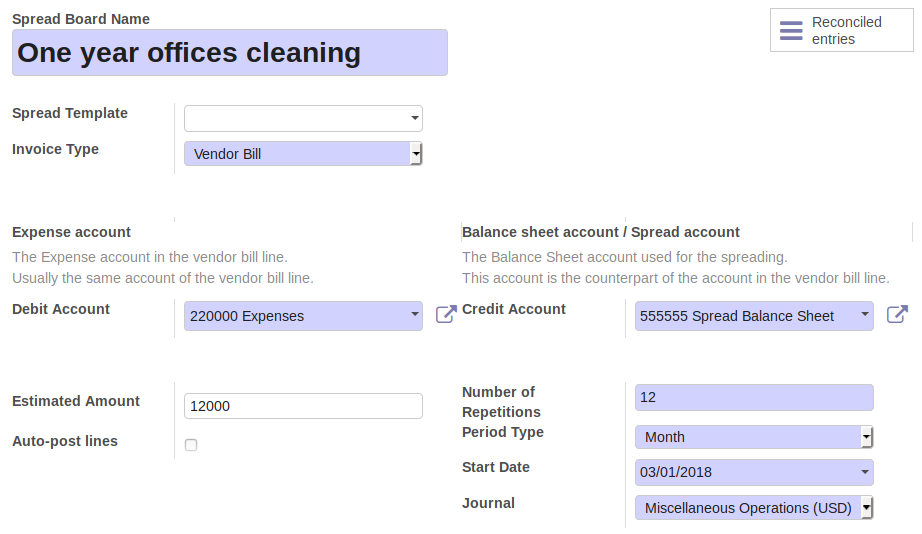
Under Invoicing -> Accounting -> Journals -> Spread Costs/Revenues, create a new spread board.
Complete the definition of the spreading criteria, by setting the the fields:
- Debit Account
- Credit Account
- Estimated Amount (The total amount to spread)
- Number of Repetitions
- Period Type (Duration of each period)
- Start date
- Journal
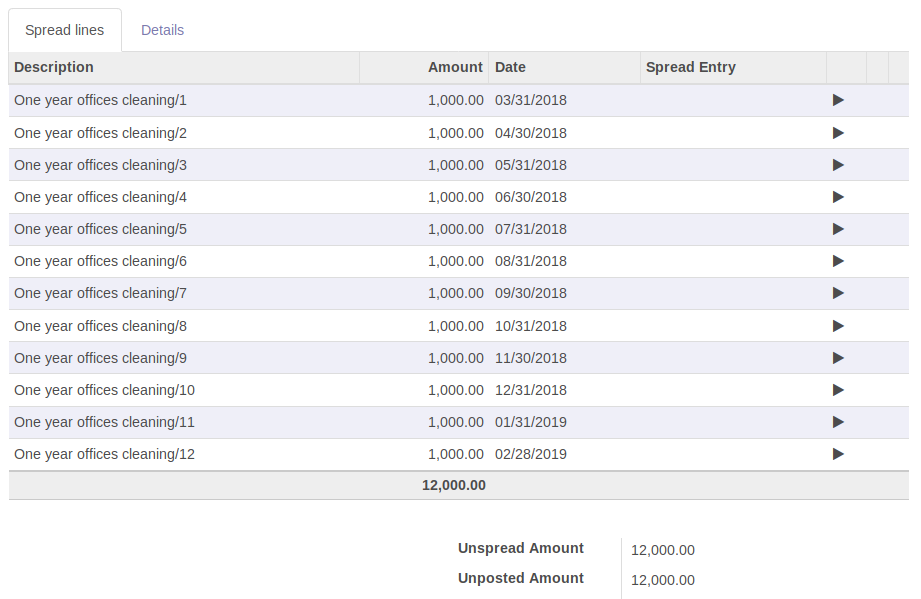
Click on the "Recalculate unposted lines" button on the top-left to calculate the spread lines.
A cron job will automatically create the accounting moves for all the lines having date previous that the current day (today).
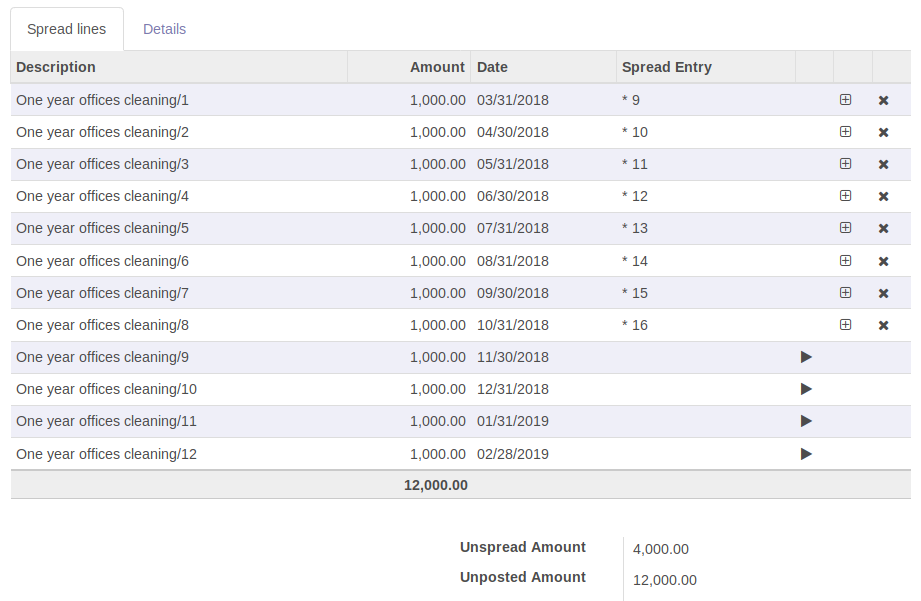
By default, the status of the created accounting moves is posted. To disable the automatic posting of the accounting moves, set the flag Auto-post lines to False. This flag is only available when the Auto-post spread lines option, present on the form view of the company, is disabled.
Click on button Recalculate entire spread button in the spread board to force the recalculation of the spread lines: this will also reset all the journal entries previously created.
Link Invoice to Spread Costs/Revenues Board
Create an invoice or vendor bill in draft. On its lines, the spreading right-arrow icon are displayed in dark-grey color.

Click on the spreading right-arrow icon. A wizard prompts to enter a Spread Action Type:
- Link to existing spread board
- Create from spread template
- Create new spread board
Select Link to existing spread board and enter the previously generated Spread Board. Click on Confirm button: the selected Spread Board will be automatically displayed.
Go back to the draft invoice/bill. The spreading functionality is now enabled on the invoice line: the spreading right-arrow icon is now displayed in green color.

Validate the invoice/bill. Click on the spreading (green) right-arrow icon to open the spread board, then click on the smart button Posted entries to see the moves of the spread lines together with the move of the invoice line.
In case the Subtotal Price of the invoice line is different than the Estimated Amount of the spread board, the spread lines (not yet posted) will be recalculated when validating the invoice/bill.
Define Spread Costs/Revenues Template
Under Invoicing -> Configuration -> Accounting -> Spread Templates, create a new spread template.
- Spread Type
- Spread Balance Sheet Account
- Expense/Revenue Account This option visible if invoice line account is balance sheet account, user need to specify this too.
- Journal
- Auto assign template on invoice validate
When creating a new Spread Costs/Revenues Board, select the right template. This way the above fields will be copied to the Spread Board.
If Auto assign template on invoice validate is checked, this template will be used to auto create spread, if the underlining invoice match the preset product/account/analytic criteria.